Automate Google Ads UTM Tracking with Campaign and Ad Group Names
If you run Google Ads for an ecommerce store, you have probably seen this problem before: Google Ads knows the campaign, the ad group, the keyword, the click ID, and the whole auction context. But by the time you look at orders inside Shopify, Matomo, or another analytics tool, the data often turns into something much less useful.
You may see campaignid=20938475612 or adgroupid=167483920111, but not the campaign name your team actually uses every day.
That is fine if you live inside Google Ads and GA4 all day. It is less fine when a founder, media buyer, or ecommerce operator opens Shopify and wants to know which campaign drove the order without cross-checking IDs in another tab.
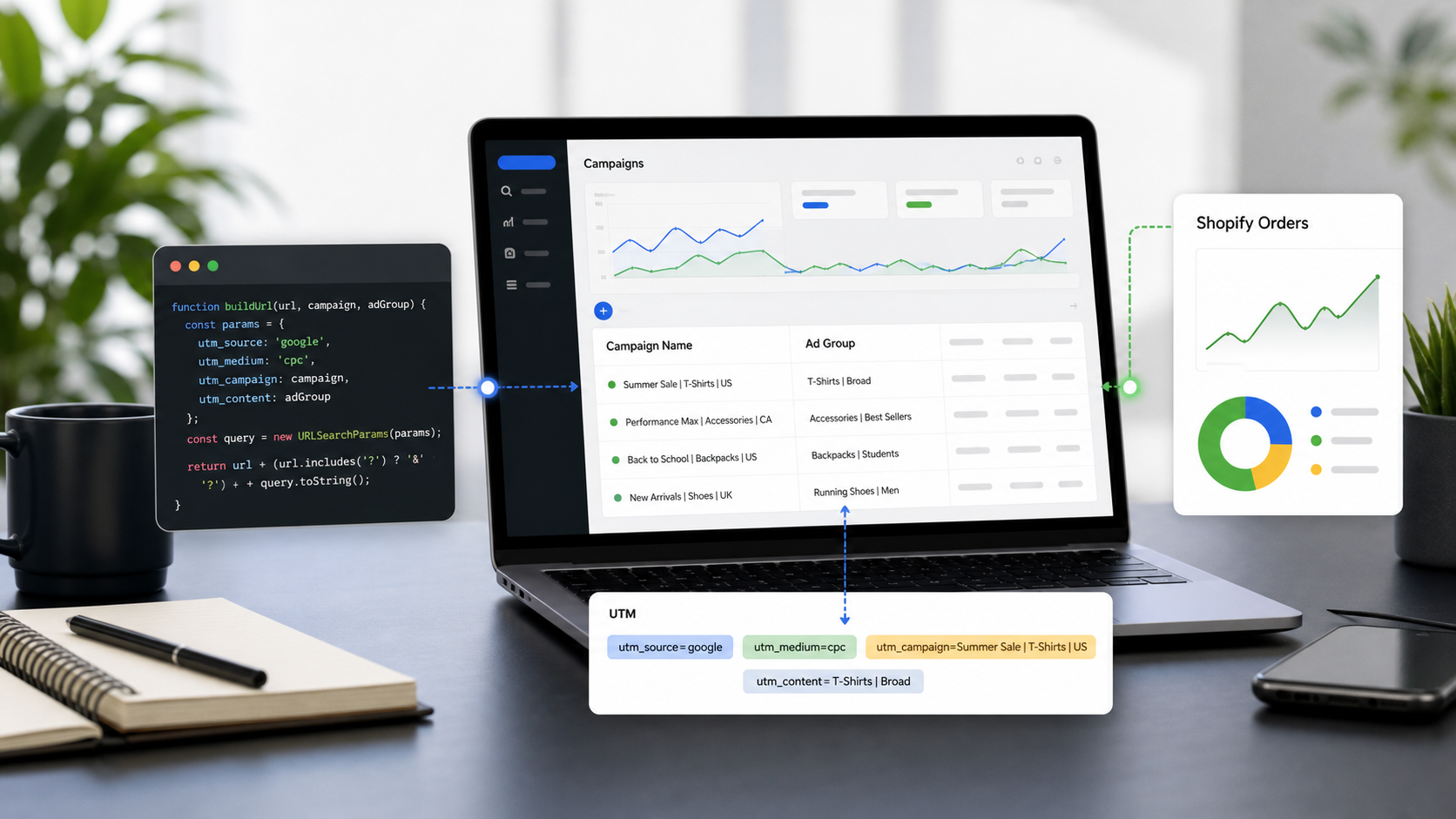
This guide shows a practical way to fix that using Google Ads Scripts. The script automatically stores the readable campaign name and ad group name as Google Ads custom parameters, then appends them to your landing page URL through the Final URL suffix.
Why ValueTrack alone is not enough
Google Ads ValueTrack parameters are useful. They can pass dynamic values such as:
{campaignid}
{adgroupid}
{keyword}
{placement}
{creative}
{network}
The problem is what they do not provide: a native {campaignname} or {adgroupname} parameter.
So a normal tracking setup like this is easy:
utm_source=google&utm_medium=cpc&utm_campaign={campaignid}&utm_content={adgroupid}
But this setup gives you IDs, not readable names.
For reporting inside Shopify, Matomo, or custom dashboards, IDs create friction. Someone has to map them back to campaign names manually. That slows down analysis and makes it easier to misread performance.
The better setup is:
utm_source=google&utm_medium=cpc&utm_campaign={_campaign}&utm_content={_adgroup}|{adgroupid}&utm_id={campaignid}
Here is the trick:
{campaignid} and {adgroupid} still come from ValueTrack.
{_campaign} and {_adgroup} are custom parameters that we update with a Google Ads Script.
utm_id={campaignid} keeps a stable numeric ID for joins and audits.
utm_campaign={_campaign} makes reporting readable in Shopify and third-party analytics tools.
Recommended UTM structure
For most Google Ads accounts, I recommend starting with this Final URL suffix:
utm_source=google&utm_medium=cpc&utm_campaign={_campaign}&utm_term={placement}|{keyword}&utm_content={_adgroup}|{adgroupid}&utm_id={campaignid}
This gives you a decent balance:
utm_source=google keeps traffic source consistent.
utm_medium=cpc keeps paid search and paid shopping traffic grouped cleanly.
utm_campaign={_campaign} sends the readable campaign name.
utm_term={placement}|{keyword} works across search and placement-based inventory.
utm_content={_adgroup}|{adgroupid} sends the readable ad group name when available, with the ID as a fallback.
utm_id={campaignid} preserves the stable Google Ads campaign ID.
If you use Matomo, you can adapt the same idea to pk_campaign, pk_kwd, or your own naming convention. The script does not care which parameter names you use.
Which campaign types this covers
The script below updates URL options at the campaign level and ad group level.
In practice:
Search campaigns: campaign name and ad group name are supported.
Shopping campaigns: campaign name and ad group name are supported when ad groups are available.
Display campaigns: campaign name and ad group name are supported when managed through standard campaign and ad group objects.
Video and other standard campaign types: campaign-level suffixes can usually be handled through the standard campaign selector, but always test in Preview first.
Performance Max campaigns: campaign name is supported, but ad group name is not, because Performance Max does not use traditional ad groups.
That is why the script has a separate Performance Max function. It writes {_campaign} and the Final URL suffix on Performance Max campaigns, but it does not try to write {_adgroup} there.
Important note before you run this
This script changes campaign URL options. It does not change your final URLs, ads, keywords, or landing pages.
Still, you should preview it before running it. If your account already uses tracking templates, third-party click trackers, or complex redirect rules, test on a small set of campaigns first.
Also, keep auto-tagging enabled if you use GA4 or Google Ads conversion reporting. Manual UTMs are for readability and third-party reporting. They should complement gclid, not replace it.
Single account Google Ads Script
Use this version if you only need to update one Google Ads account.
// UTM Setter for Google Ads - Single Account
var CONFIG = {
SUFFIX: 'utm_source=google&utm_medium=cpc&utm_campaign={_campaign}&utm_term={placement}|{keyword}&utm_content={_adgroup}|{adgroupid}&utm_id={campaignid}'
};

function main() {
updateStandardCampaigns();
updateAdGroups();
updatePerformanceMaxCampaigns();
}

function encodeParamValue(value) {
return encodeURIComponent(value || '')
.replace(/%20/g, '+');
}

function updateStandardCampaigns() {
var campaignIterator = AdsApp
.campaigns()
.withCondition("campaign.status IN ('ENABLED','PAUSED')")
.get();

while (campaignIterator.hasNext()) {
var campaign = campaignIterator.next();
var encodedName = encodeParamValue(campaign.getName());
var params = campaign.urls().getCustomParameters();

if (params.campaign !== encodedName) {
params.campaign = encodedName;
campaign.urls().setCustomParameters(params);
}

if (campaign.urls().getFinalUrlSuffix() !== CONFIG.SUFFIX) {
campaign.urls().setFinalUrlSuffix(CONFIG.SUFFIX);
}
}
}

function updateAdGroups() {
var adGroupIterator = AdsApp
.adGroups()
.withCondition("campaign.status IN ('ENABLED','PAUSED')")
.get();

while (adGroupIterator.hasNext()) {
var adGroup = adGroupIterator.next();
var encodedName = encodeParamValue(adGroup.getName());
var params = adGroup.urls().getCustomParameters();

if (params.adgroup !== encodedName) {
params.adgroup = encodedName;
adGroup.urls().setCustomParameters(params);
}
}
}

function updatePerformanceMaxCampaigns() {
var pmaxIterator = AdsApp
.performanceMaxCampaigns()
.withCondition("campaign.status IN ('ENABLED','PAUSED')")
.get();

while (pmaxIterator.hasNext()) {
var campaign = pmaxIterator.next();
var encodedName = encodeParamValue(campaign.getName());
var params = campaign.urls().getCustomParameters();

if (params.campaign !== encodedName) {
params.campaign = encodedName;
campaign.urls().setCustomParameters(params);
}

if (campaign.urls().getFinalUrlSuffix() !== CONFIG.SUFFIX) {
campaign.urls().setFinalUrlSuffix(CONFIG.SUFFIX);
}
}
}
MCC version for manager accounts
Use this version if you manage multiple accounts from a Google Ads manager account.
The script only processes accounts with a specific label. By default, that label is:
Add UTM Parameter
This is intentional. You probably do not want to apply a URL rule to every client or every sub-account by accident.
// UTM Setter for Google Ads - MCC Version
var CONFIG = {
LABEL_NAME: 'Add UTM Parameter',
SUFFIX: 'utm_source=google&utm_medium=cpc&utm_campaign={_campaign}&utm_term={placement}|{keyword}&utm_content={_adgroup}|{adgroupid}&utm_id={campaignid}'
};

function main() {
var accountSelector = AdsManagerApp.accounts()
.withCondition("LabelNames CONTAINS '" + CONFIG.LABEL_NAME + "'")
.withLimit(50);

accountSelector.executeInParallel('processAccount', 'allFinished');
}

function processAccount() {
updateStandardCampaigns();
updateAdGroups();
updatePerformanceMaxCampaigns();
}

function encodeParamValue(value) {
return encodeURIComponent(value || '')
.replace(/%20/g, '+');
}

function updateStandardCampaigns() {
var campaignIterator = AdsApp
.campaigns()
.withCondition("campaign.status IN ('ENABLED','PAUSED')")
.get();

while (campaignIterator.hasNext()) {
var campaign = campaignIterator.next();
var encodedName = encodeParamValue(campaign.getName());
var params = campaign.urls().getCustomParameters();

if (params.campaign !== encodedName) {
params.campaign = encodedName;
campaign.urls().setCustomParameters(params);
}

if (campaign.urls().getFinalUrlSuffix() !== CONFIG.SUFFIX) {
campaign.urls().setFinalUrlSuffix(CONFIG.SUFFIX);
}
}
}

function updateAdGroups() {
var adGroupIterator = AdsApp
.adGroups()
.withCondition("campaign.status IN ('ENABLED','PAUSED')")
.get();

while (adGroupIterator.hasNext()) {
var adGroup = adGroupIterator.next();
var encodedName = encodeParamValue(adGroup.getName());
var params = adGroup.urls().getCustomParameters();

if (params.adgroup !== encodedName) {
params.adgroup = encodedName;
adGroup.urls().setCustomParameters(params);
}
}
}

function updatePerformanceMaxCampaigns() {
var pmaxIterator = AdsApp
.performanceMaxCampaigns()
.withCondition("campaign.status IN ('ENABLED','PAUSED')")
.get();

while (pmaxIterator.hasNext()) {
var campaign = pmaxIterator.next();
var encodedName = encodeParamValue(campaign.getName());
var params = campaign.urls().getCustomParameters();

if (params.campaign !== encodedName) {
params.campaign = encodedName;
campaign.urls().setCustomParameters(params);
}

if (campaign.urls().getFinalUrlSuffix() !== CONFIG.SUFFIX) {
campaign.urls().setFinalUrlSuffix(CONFIG.SUFFIX);
}
}
}

function allFinished(results) {
for (var i = 0; i < results.length; i++) {
var result = results[i];

if (result.getStatus() === 'ERROR') {
console.log('Account failed: ' + result.getError());
} else if (result.getStatus() === 'OK') {
console.log('Account processed successfully.');
} else {
console.log('Account timed out.');
}
}
}
How to install the script in Google Ads
For a single account:
Open Google Ads.
Go to Tools.
Open Bulk actions.
Open Scripts.
Create a new script.
Paste the single-account version.
Click Authorize.
Click Preview.
Review the changes.
Save the script.
Schedule it to run daily.
For an MCC account:
Open your Google Ads manager account.
Create a new account label named Add UTM Parameter.
Apply that label only to the child accounts you want to update.
Go to Tools > Bulk actions > Scripts.
Create a new script.
Paste the MCC version.
Authorize and Preview.
Save the script.
Schedule it to run daily.
A daily schedule is usually enough. Campaign and ad group names do not change minute by minute. The main reason to schedule it is to catch new campaigns, new ad groups, and naming changes without relying on someone to remember the tracking task.
Common mistakes to avoid
Do not use {campaign} or {campaignname} and expect Google Ads to replace it with the campaign name. Those are not standard ValueTrack parameters for campaign names.
Do not put raw campaign names directly into URLs without encoding them. Spaces, ampersands, question marks, and slashes can break tracking. The script uses URL encoding for this reason.
Do not remove gclid auto-tagging just because you added manual UTMs. Auto-tagging is still important for Google Ads and GA4 attribution.
Do not apply this blindly to accounts with existing third-party tracking templates. If you use a click tracker, confirm where the Final URL suffix should live.
Do not mix uppercase and lowercase naming rules. Google, google, and GOOGLE can become separate rows in analytics tools. Keep source and medium lowercase.
Why this helps Shopify reporting
Shopify can show UTM parameters in order and session reporting, but it will only show what reaches the storefront URL. If Google Ads only passes numeric IDs, that is what you will see.
Once this script is running, your Shopify order context can include a readable campaign name such as:
utm_campaign=brand_search_us
utm_content=exact_brand_terms|123456789
That is much easier to read than:
utm_campaign=20938475612
utm_content=167483920111
The numeric ID is still there in utm_id, so you keep both human-readable reporting and stable ID-based auditing.
FAQ
Can I use this instead of Google Ads auto-tagging?
No. Keep auto-tagging on if you use Google Ads conversion tracking or GA4. This UTM setup is mainly for readability in Shopify, Matomo, CRM tools, and custom reporting.
Will this work for Performance Max?
Yes for campaign name tracking. Performance Max does not have traditional ad groups, so {_adgroup} will not be populated the same way it is for Search or Shopping campaigns.
What happens if I rename a campaign?
The next scheduled script run updates the custom parameter with the new campaign name. If you want historical consistency, keep utm_id={campaignid} in the suffix so you can still join data by campaign ID.
Should I use campaign name or campaign ID in utm_campaign?
Use campaign name when humans need to read the report quickly. Keep campaign ID in utm_id for stable joins and long-term analysis.
Is encodeURI good enough?
For full URLs, sometimes. For parameter values, encodeURIComponent is safer because it also encodes characters like &, ?, and = that can break query strings.
Final thought
Google Ads ValueTrack is strong, but it is not designed to solve every reporting workflow outside Google's ecosystem. When your real problem is readability in Shopify, Matomo, or a client-facing dashboard, a small Google Ads Script can remove a surprising amount of manual cleanup.
Set the script once, preview it carefully, schedule it daily, and let your UTM naming follow the account instead of someone's memory.