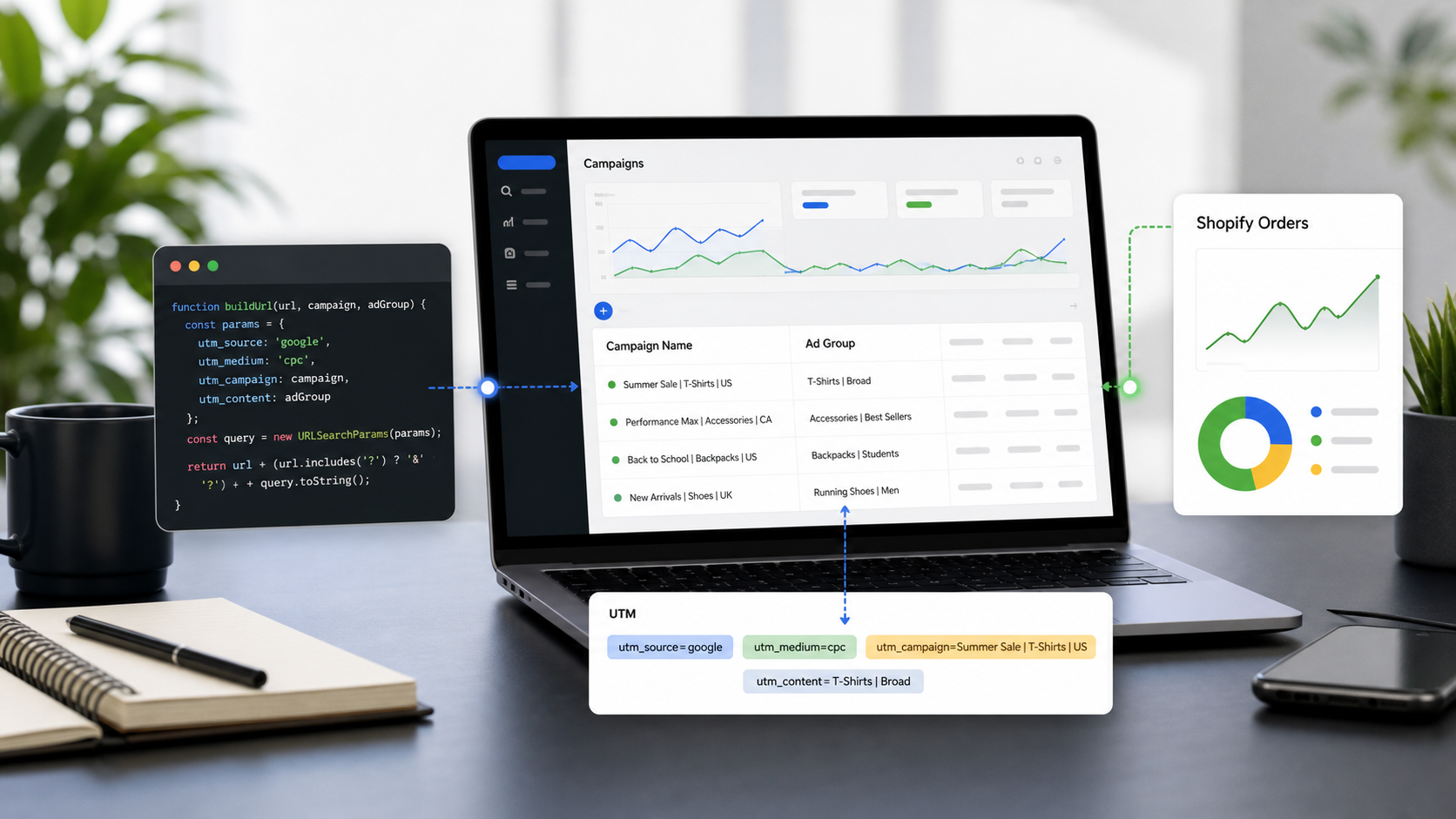
For advertisers and agencies using Google Campaign Manager 360 (CM360), managing hundreds of display, video, and rich media placements is a complex daily reality. While CM360 has its own robust Floodlight tracking capabilities, configuring UTM parameters correctly is still absolutely essential.
Without proper UTMs, your data in Google Analytics 4 (GA4) or third-party analytics tools (like Adobe Analytics) will lack clear traffic sources and attribution context.
This guide covers how to efficiently append UTMs at scale in CM360, the core best practices for enterprise ad tracking, and how to use UTMMind to standardize your entire team’s workflow.
How to Add UTM Parameters in Campaign Manager 360
In an enterprise ad server like CM360, the biggest mistake you can make is manually pasting UTMs onto every individual creative landing page. The most efficient and scalable method is using the Landing Page URL Suffix feature.
CM360 allows you to append tracking parameters at multiple levels (the lower the level, the higher the priority):
Advertiser Level: Applies to all campaigns under the advertiser.
Campaign Level: The most common placement, defining standard tracking for a specific initiative.
Placement / Ad Level: Used for granular tracking or specific overrides.
Step-by-Step Configuration:
Log in to CM360 and navigate to your Campaign.
Click on Properties.
Scroll down and expand the Landing page URL suffix section.
Enter your UTM string into the text box. Example:
utm_source=cm360&utm_medium=display&utm_campaign=summer_saleCheck the box to apply this to all underlying levels, then save.
When an ad is clicked, CM360 will automatically append this string to the base landing page URL.
4 UTM Best Practices for CM360
1. Leverage CM360 Macros for Dynamic Data
Do not manually write UTMs for every single placement! CM360 supports powerful "Macros" (dynamic variables) that automatically populate with specific IDs or names when a user clicks the ad.
Recommended Suffix Formula Example:
utm_source=cm360&utm_medium=display&utm_campaign=%e&utm_content=%p&utm_term=%s
Macro | What it dynamically inserts into the URL |
| The Campaign ID. |
| The Placement ID. |
| The Site ID (Publisher). |
(Note: Relying on IDs rather than names prevents formatting errors and keeps URLs clean. You can easily map these IDs back to their names in your analytics platform.)
2. Clearly Differentiate Source and Medium
Since CM360 is primarily used for programmatic, display, and video ads, establish a clear global rule:
utm_source: Standardize this ascm360, or use the specific publisher/DSP name.utm_medium: Explicitly define the ad format, such asdisplay,video, orrich_media.
3. Enforce Lowercase and Avoid Spaces
Analytics platforms like GA4 are case-sensitive. utm_medium=Display and utm_medium=display will be tracked as two entirely different channels. Ensure any static text you enter into the CM360 suffix is 100% lowercase, using underscores (_) or hyphens (-) instead of spaces.
4. Prevent Parameter Duplication
If your base landing page URL already contains a ? (e.g., internal system parameters), CM360 is generally smart enough to append your suffix using an &. However, always generate test tags before launch and physically click them to verify that the final landing page URL structure is unbroken.
How to Standardize CM360 Tracking with UTMMind
While CM360's URL suffix feature is powerful, it doesn't solve human error. Deciding what strings to type into that suffix box—and ensuring your entire media team spells them correctly—is where UTMMind comes in.
UTMMind is a professional link tracking and management platform that perfectly aligns with CM360 ad ops workflows:
1. Build a CM360 Template
In UTMMind, administrators can pre-set mandatory dropdown menus. You can enforce rules stating that when generating links for CM360, the Source must be cm360 and the Medium is restricted to display or video. This stops typos at the source before they ever reach your GA4 dashboards.

2. Generate CM360 Tracking Links at Scale
Once your template is locked in, your Media Planners and Ad Ops teams can start generating tracking links effortlessly. Whether you are creating a handful of URLs for a localized push or bulk-generating thousands of links from a massive Excel media plan, UTMMind handles the heavy lifting. Users simply input their base landing page URLs, select the predefined CM360 template, and fill in the required fields. UTMMind’s auto-formatting engine instantly outputs perfectly structured, macro-ready URL suffix strings that are 100% compliant with your team's naming conventions.

3. Sync CM360 Links to CM360
The final, most crucial step is deploying these standardized links into your ad server. With UTMMind, you bypass the tedious and error-prone process of manually copying and pasting individual URLs. You can export your newly generated tracking links and URL suffixes directly into a CM360-ready bulk upload format (CSV/Excel), which your Ad Ops team can upload straight into Campaign Manager to update Placements and Ads in one go. For teams utilizing advanced setups, you can even sync these parameters directly to your CM360 workspace via API integrations—saving hours of manual data entry and ensuring your ads launch with perfect attribution tracking every time.

4. Centralize Your Tracking Assets
Once a campaign is live, the entire UTM architecture planned via UTMMind is saved in a cloud workspace. Data analysts no longer need to hunt down old spreadsheets or message media planners to figure out what a specific CM360 placement represents. They simply check the centralized UTMMind dashboard, drastically speeding up attribution analysis.
Try Our Free CM360 UTM Template
Want to see these best practices in action without building everything from scratch? We’ve put together a free, public CM360 UTM template inside UTMMind that comes pre-configured with the exact macros and formatting rules discussed in this guide.